

Tutorials, customer stories, and what we are shipping next.
How to Use AI to Decorate a Room
To use AI to decorate a room, upload a clear photo of the room, tell the AI what must stay and what can change, generate a design, and then edit one detail at a time. Use the result to choose colors, furniture, and decor, and check real measurements and product prices before you buy anything.

How to use AI to decorate a room in 6 steps
- Take a clear photo of the room from a doorway or corner, in even light.
- Write a prompt that says what stays, what can change, and any limits such as renting or budget.
- Choose one style or add a reference image so the AI has a clear direction.
- Review the result and edit one detail instead of regenerating the whole room.
- Check furniture placement with real measurements, ideally in a floor plan you can edit in 2D and 3D.
- Turn the design into a shopping shortlist with sizes, finishes, and price limits.
The sections below explain each step, with prompts you can copy and screenshots from AIHom.
What AI can and can’t do when you decorate a room
AI is good at showing you how a room could look. It can restyle a photo, swap a rug or sofa, try new paint colors, and suggest furniture and decor that match a style. You do not need design experience to start.
AI photo tools are less reliable at practical details. A redesigned photo does not know your room’s dimensions, it may invent furniture that you cannot buy, and it can quietly move a window or a door. Use AI for ideas and visuals, and use measurements or a floor plan for decisions about fit.
Before you start: pick the right type of AI tool
The right AI tool depends on the question you want answered. A photo redesign tool shows a new look for your existing room. A general AI chatbot helps you plan ideas and write prompts. An AI room planner helps you test where furniture fits.
Most people start by redesigning a room photo. If the room already has a layout problem, such as a blocked walkway, start with a floor plan. AIHom covers both: photo redesigns in chat, and floor plans you can turn into an editable 3D room.
Step 1: Take a clear photo of the room
A clear photo is the most important input, because the AI can only redesign what it can see. Photograph the room in even daylight from a doorway or corner, with the furniture, windows, and door openings visible. Keep the camera level and remove temporary clutter such as laundry or boxes.
Save the original photo. Comparing every result against the same view makes it easier to spot what the AI changed.

Step 2: Write a prompt that says what stays and what changes
A good room decorating prompt names four things: the room, the items to keep, the changes to try, and any practical limits. Specific instructions work better than general ones.
Use this structure:
Room: This is my [living room / bedroom / home office]. Keep: [the items, walls, floors, and windows that must not change]. Change: [the furniture, colors, or decor you want to try]. Limits: [renting, budget, pets, or a walkway to keep clear].
For a living room, you could write:
Decorate this living room while keeping the windows, the built-in shelves, and the wood floor. Add a cream sofa, a smaller coffee table, a patterned rug, and warm lighting. Use terracotta and muted green accents. Keep the walkway clear and do not change the walls.
If you rent, say that the flooring, built-ins, and wall finishes must stay the same. A budget can guide the brief, but it does not turn a generated design into a priced shopping list.

Step 3: Choose one style or add a reference image
Give the AI one clear style direction for each attempt. Most AI room decorators offer style presets such as Japandi, Scandinavian, or midcentury modern. Some also accept a reference image, such as a room you saved from Pinterest.
When you use a reference image, say what you like about it, for example the oak furniture, cream textiles, or muted colors. The AI copies the whole look unless you name the parts you want.
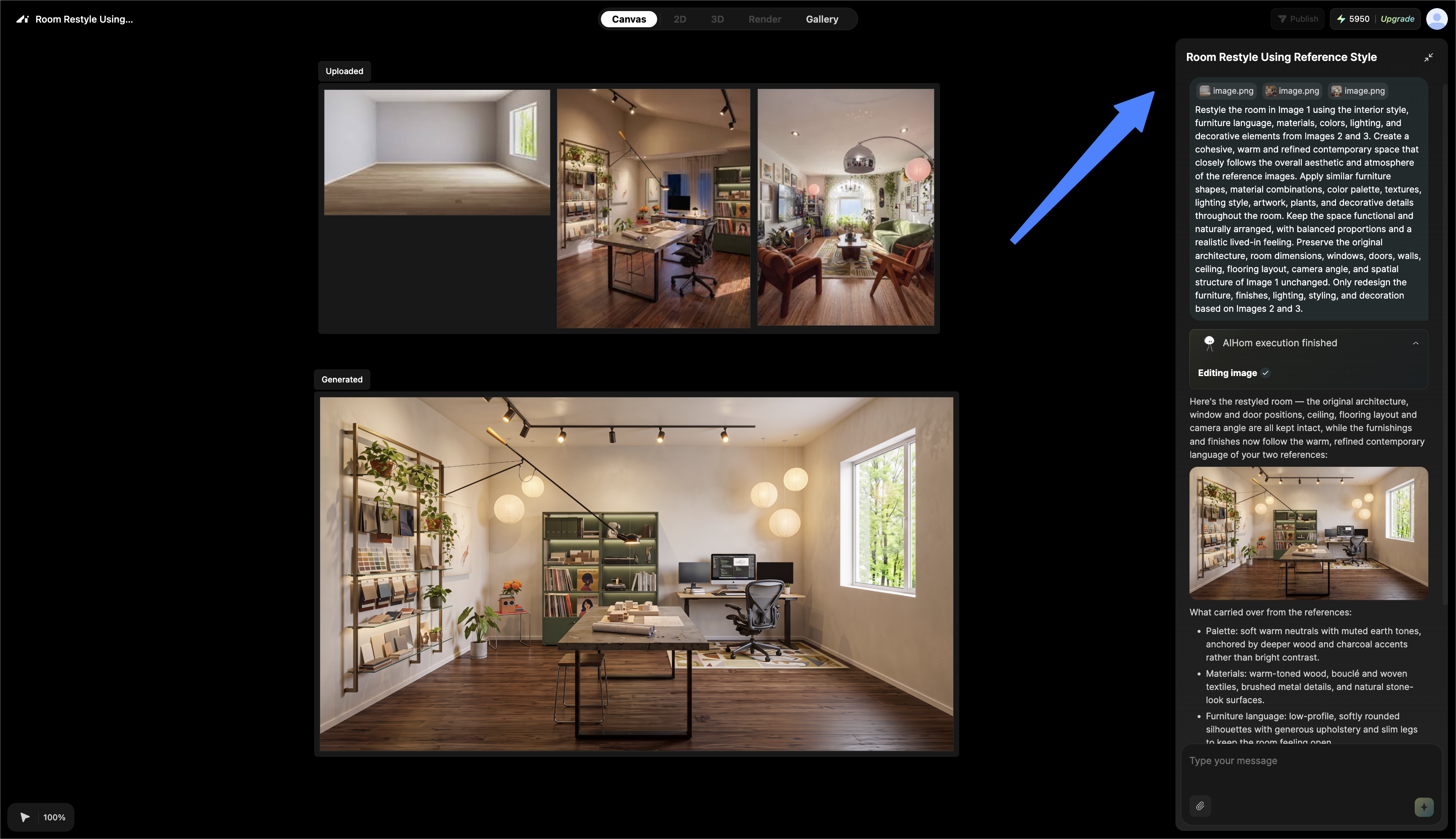
Image 1 is my room. Image 2 is a style reference. Use the warm colors and wood furniture from Image 2 in my room. Keep my existing layout and leave the windows where they are.
To compare two styles fairly, use the same source photo and the same “keep” instructions for both attempts.
Step 4: Review the result and edit one detail
Compare each AI room design with your original photo before you spend more credits. Check the doors, windows, furniture you wanted to keep, and the walkway. In our October 27 test, AIHom listed what it kept intact (the windows, built-in shelves, wood floor, and walls) next to the result, which made this check quicker. Reject a result that adds an extra window or removes furniture you need, even if it looks attractive.
Once the overall direction works, ask for one focused change instead of a complete makeover. Small edits keep the parts you already like. Expect a few rounds: the first result is a draft, and targeted edits usually get you closer faster than starting over.

Change only the rug to a lighter cream color. Keep the sofa, coffee table, windows, walls, and camera angle unchanged.
Example: changing one chair color in AIHom
We liked everything about this AIHom living room design except the floral armchair. So we used Annotate to select just that chair and asked for olive green upholstery. The new fabric came back on the same wooden frame, in the same spot, and the sofa, rug, and windows stayed untouched. Keep in mind this is a design concept, not a photo of a finished room.


A targeted edit like this works when the room concept is right but one fabric or color is not. Select the area of the image, describe the change, and compare the new image with the previous version for unintended changes.
Step 5: Check furniture placement with real measurements
A redesigned photo cannot tell you whether furniture fits, because it does not contain your room’s dimensions. Measure the room and any furniture you plan to keep before you make a purchase decision. Check door swings, drawers, and the route people walk through the room.
If you want AI to rearrange your room, work from a floor plan instead of a photo. In AIHom, you can upload a floor plan or describe your home to generate one, then click Generate 3D to turn it into a furnished 3D room. Drag, resize, add, or remove furniture in the 2D view, click Sync, and check the same layout in 3D before you buy anything. Confirm that the floor plan’s dimensions match your real room.
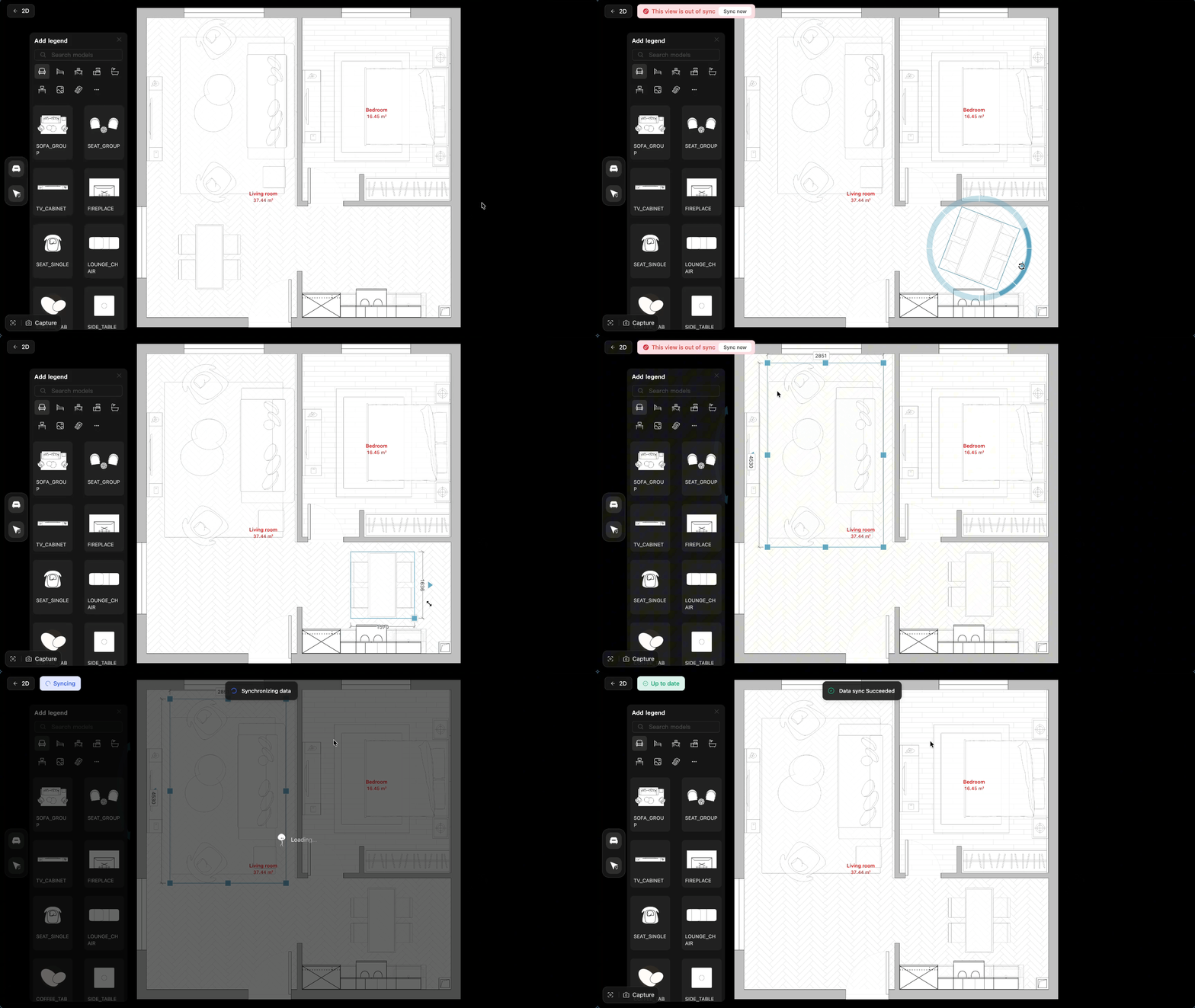
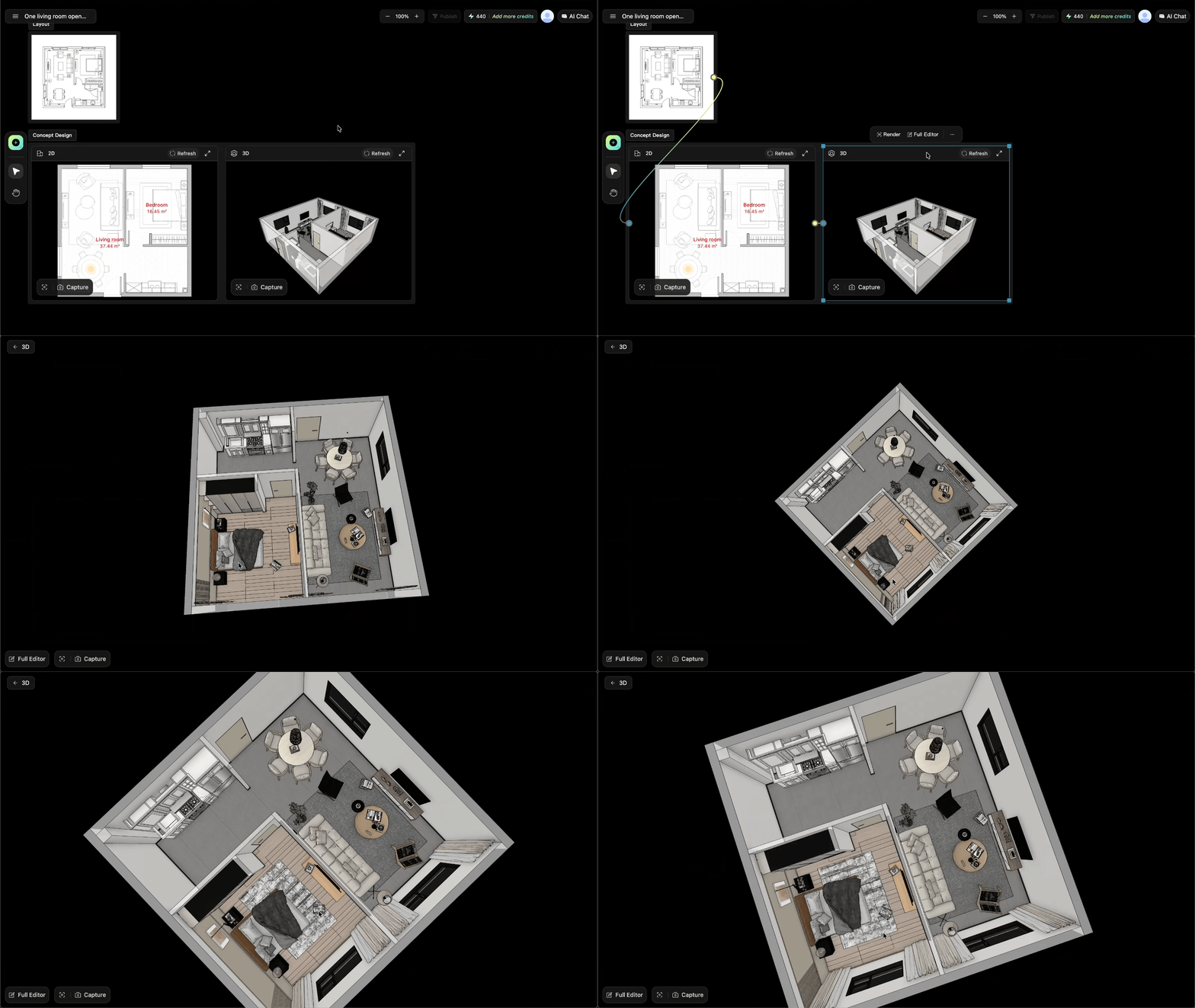
AIHom’s 2D layout editing guide explains how to move and resize furniture and sync the change to the other views.
Step 6: Turn the design into a shopping shortlist
An AI room design is a starting point for shopping, not a product list. AI-generated furniture often does not match a real product. List the changes you actually want to make, such as a rug, curtains, a lamp, and a coffee table.
For each item, write down:
- the size your room can fit
- the color or finish from the design
- your maximum price
- a retailer link
Colors on a screen are approximate. Order paint samples and fabric swatches and look at them in your room’s daylight before you commit. Check delivery access, availability, and return policies before you order.
If you already have a product in mind, AIHom’s furniture photo preview workflow shows how it could look in your room image. Use the retailer’s measurements, not the image, to confirm fit.
Fix common AI room decorating problems
Keep a result only when it answers your original decorating question. An attractive image that changes the room’s fixed features is not a usable plan for your space.
From photo to editable 3D room: what AIHom adds
Most photo-based AI room decorators stop at a redesigned image. AIHom lets you continue from the image to a layout you can edit, so the same project can answer both “how will it look?” and “will it fit?”
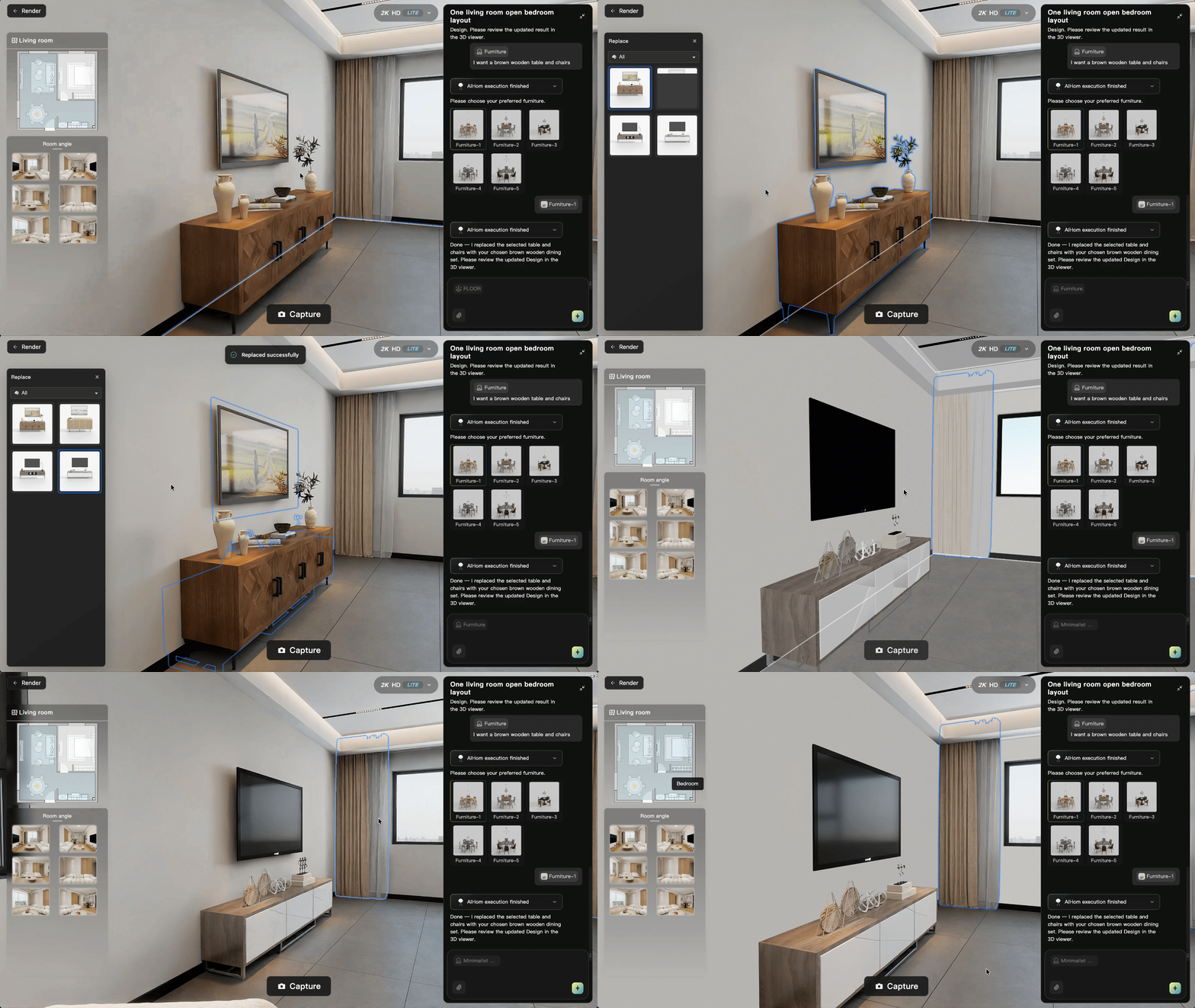
The floor plan to 3D guide and the room redesign guide walk through each workflow. AIHom also offers templates and a community gallery of designs from other users. A generated video presents a concept; it does not verify room dimensions or construction feasibility.
Try AI home design for free
Redesign your room with AI, or turn a 2D floor plan into an editable 3D design with high-resolution renders.
Get started
Compare popular AI room decorating tools
Most AI room decorators start from a photo and a style choice. They differ in whether you can edit details, plan a layout, and how much you can do for free. The table below summarizes each tool’s main starting point and access as listed on October 27, 2026.
Details for other tools come from their official pages. Check each tool’s current pricing before you start.
