
AI image to video for interior design
Turn room photos and interior design renders into videos with AI. Add camera movement to a room image, show furniture appearing, or combine room photos into a house tour video.
Photo → Video · Growth animation
Convert a bedroom image into a video
Turn a bedroom photo or interior render into a video with camera movement.
For presenting a single room or reviewing a design.
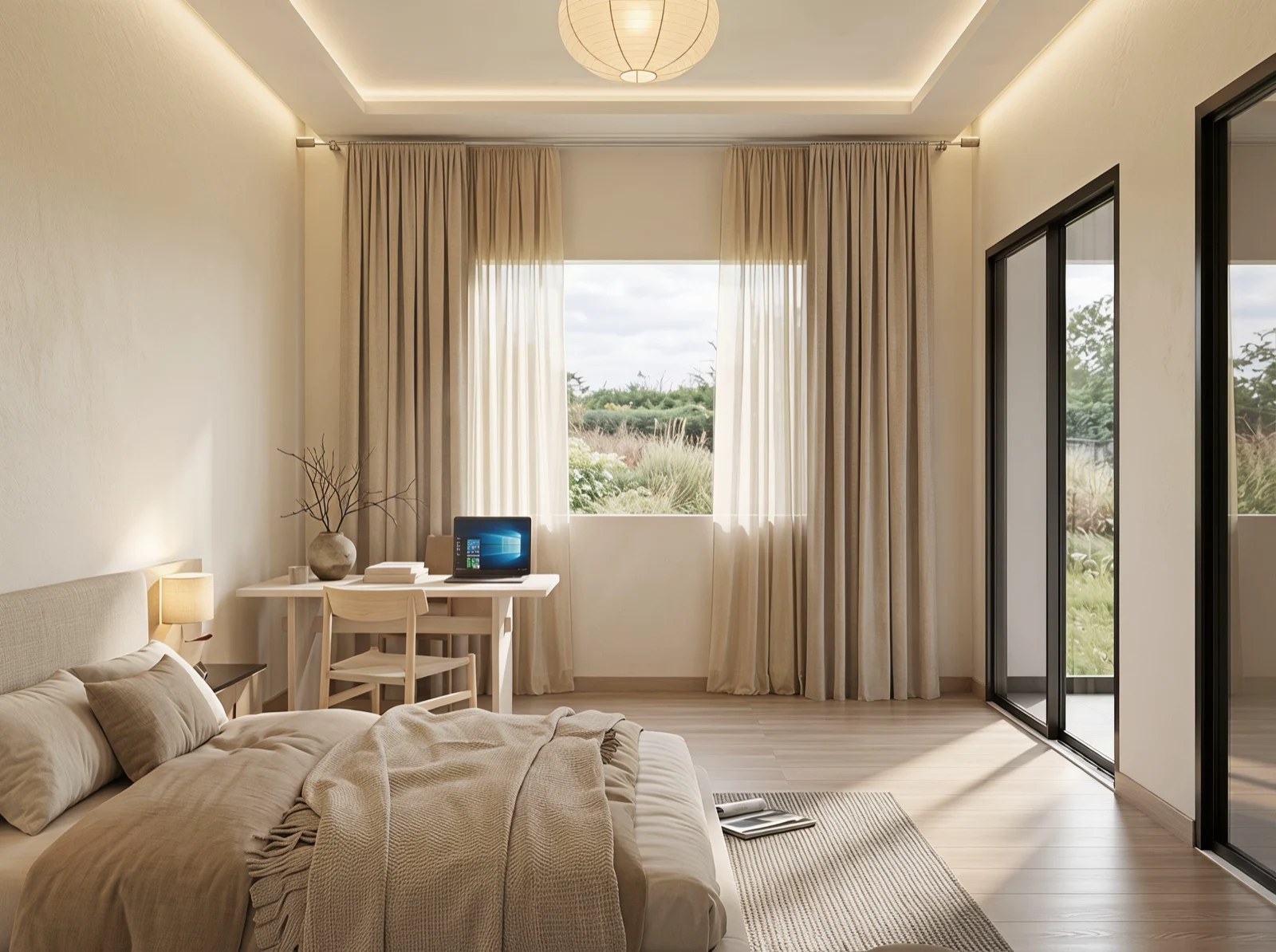 Room photo
Create a house tour video from photos
Create a house tour video from photos of different rooms, with a generated moving shot for each space.
For sharing several spaces in sequence.
Separate room shots, combined into one house tour video.
Create furniture animations from room images
Animate one furnished room photo or design render to create a video where furniture gradually appears.
For showing furniture appearing in a finished room.
Ways to use your videos
Interior design videos for presentations and social media
Use animated room images to present a design, create an interior social post, or share a video tour of your home.
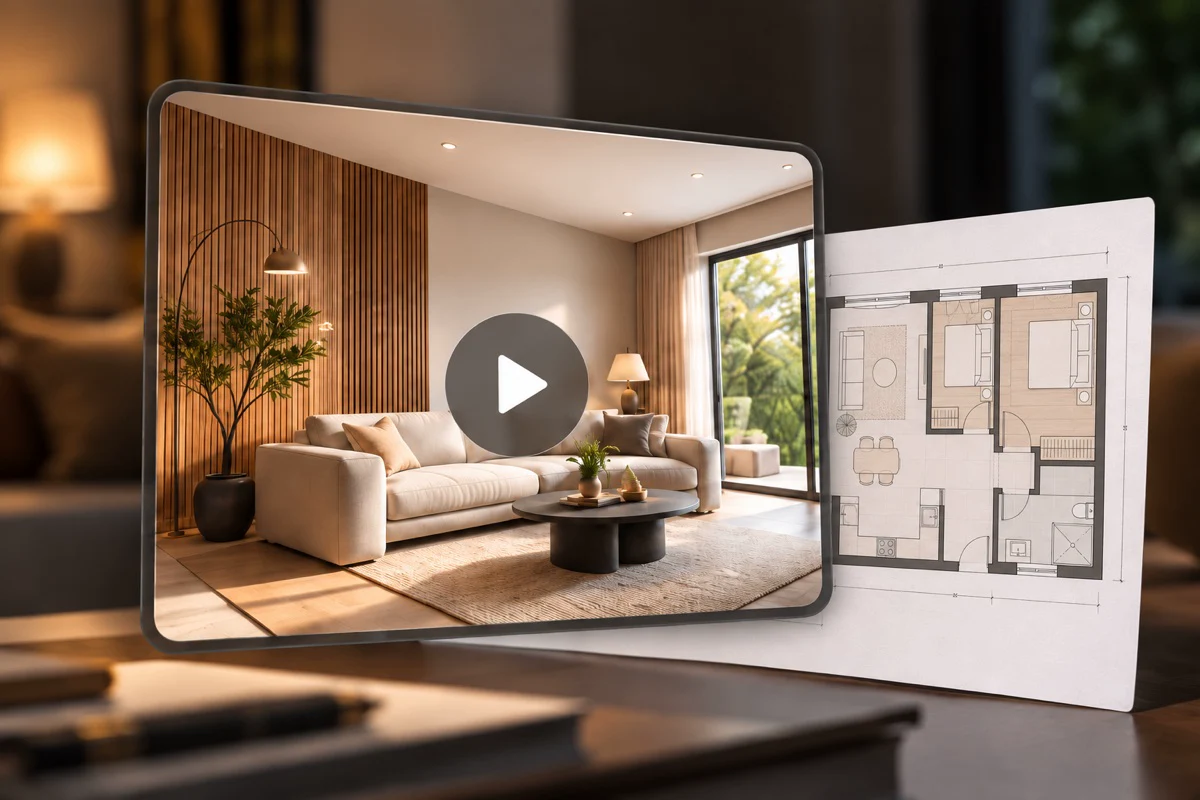
For designers & design students
Interior design animation for presentations
Bring a still interior render into motion for a client presentation or design review. Show the video alongside your plans and images to explain the space.
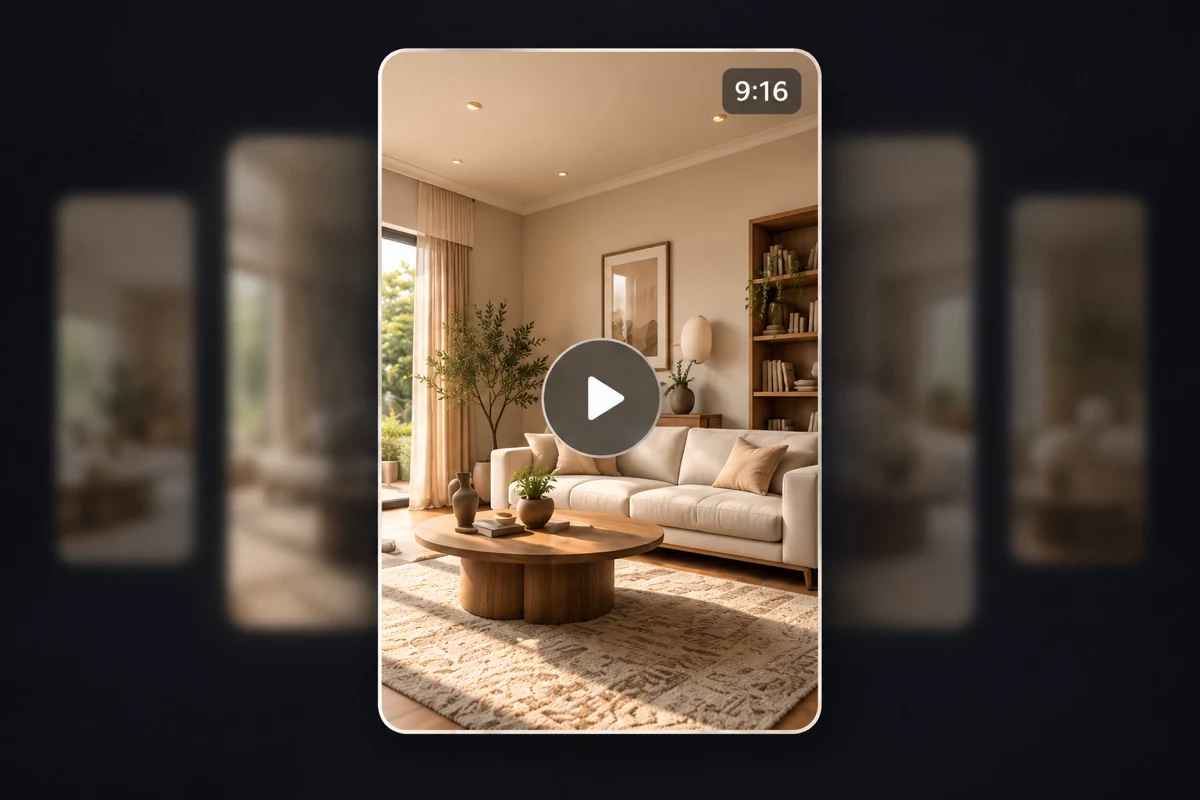
For home & interior creators
Create room videos for social media
Turn bedroom or living room photos into short clips for social posts. Use camera movement or furniture appearing to highlight the room and its furnishings.
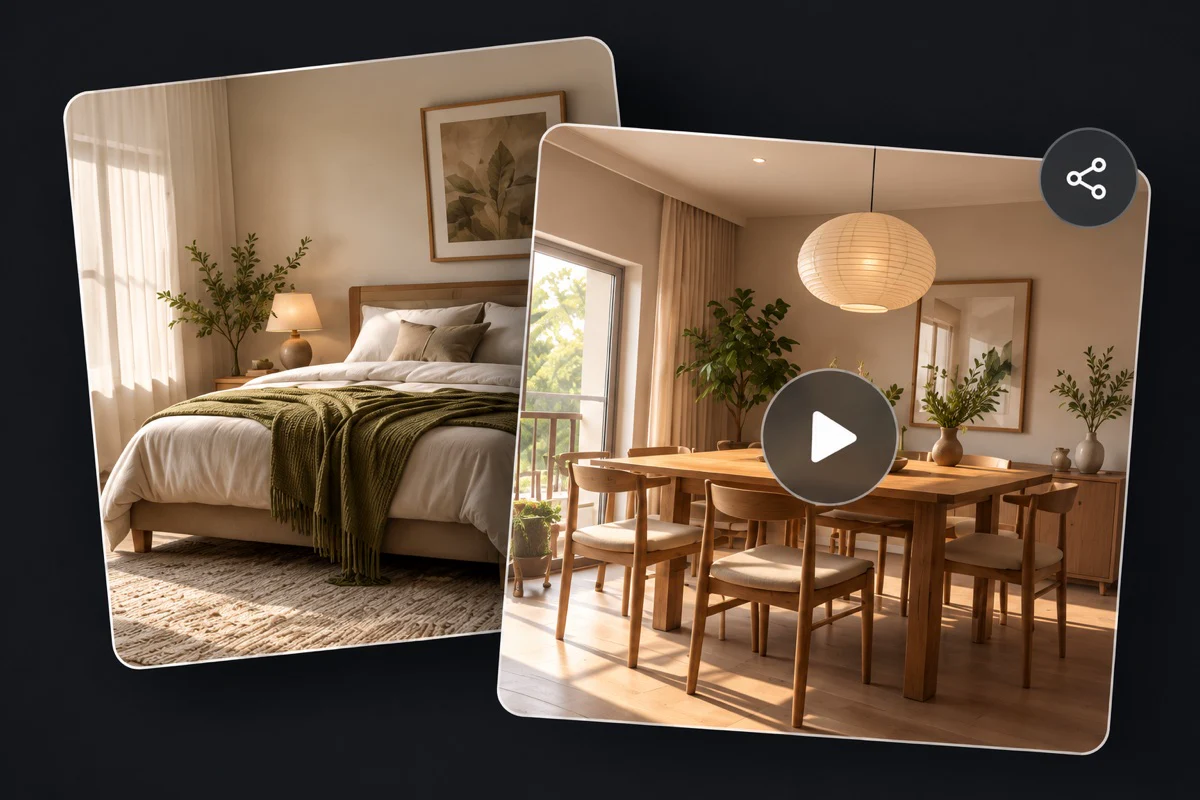
For homeowners & home enthusiasts
Create a house tour video from photos
Combine photos of different rooms into one video to share your home. Each room becomes a separate moving shot, so viewers see the spaces in sequence.
Frequently asked questions
About creating room videos, choosing images, and reviewing your results.
An image-to-video generator uses a still image as the starting point and generates additional frames to create motion. In AIHom, you can upload your own room photo or interior render, or use an image created in AIHom. The generated video can show camera movement or furniture appearing.
The output is a video. It is not an interactive 3D walkthrough: viewers cannot freely navigate the space, choose a new camera angle or explore beyond the generated shots. For a model you can explore, see floor plan to 3D.
For one room image, choose Room video to add camera movement. In AIHom, House tour can generate multiple shots from a single room image, or combine 2–10 room photos or interior renders into a video that transitions between rooms. Select Generate video to continue in AIHom. Sign in if prompted, then review and send the prepared instructions in your project. You can also try a sample before uploading your own images. Follow our video generation guide for the full workflow.
Yes. Use a clear room photo or a still interior design render in JPG, PNG or WebP format. Choose an image that shows the space and furnishings, rather than a floor plan. The video is generated from the room image you upload. To prepare a render from a sketch or 3D screenshot, explore AI rendering.
Start with photos or renders of the interiors you want to present. Use Room video for an individual space, Growth animation to show furniture appearing, or House tour for several rooms. Review the generated clips and use them alongside your plans and still images in a design presentation.
Room video animates one room image into a single shot. House tour generates multiple shots from one room image, or combines shots from 2–10 images of different rooms into a video. With multiple room images, the rooms appear in sequence; the video does not create a continuous camera journey between them.
Yes. Upload a bedroom photo or render in Room video to add camera movement. You can use the same mode for a living room or another interior. For furniture appearing instead of a camera move, choose Growth animation.
Upload one image of a finished, furnished room. Growth animation creates the effect of furniture gradually appearing in that space. You do not need an empty-room image or a before-and-after pair.
Use a clear source image and review the generated video for changes to room geometry, furniture and materials. AI-generated motion can introduce differences, so check the result against your design before sharing it.
New accounts receive 200 free credits. Video generation consumes credits, and the number of videos depends on the selected options. Check the cost in your project before generating and see Pricing for current plans.
Processing time varies with the generation options and service availability. Follow the progress in your AIHom project; a fixed completion time is not guaranteed.
Yes. Use clear interior photos you have permission to use. House tour can combine room shots into a sequence. Review the result against the actual property before sharing; it is a generated video, not an interactive property tour.
Turn your room photos into videos
Choose a video mode and upload your room photos or interior renders. Create a moving room view, a furniture animation, or a multi-room house tour.
